> ## Documentation Index
> Fetch the complete documentation index at: https://aibco.mintlify.site/llms.txt
> Use this file to discover all available pages before exploring further.
# Set Up AIBCO Automatically with the Setup Wizard
> Run the Setup Wizard to build your AIBCO profile, chat knowledge, and product catalog in one pass from your website, social profiles, or notes.
The Setup Wizard builds your entire AIBCO account in one pass: company profile, chat knowledge, and product catalog. It opens automatically after your first sign-in and can be re-run any time from the sidebar. This page covers the three routes, what each field does, and what happens when you re-run it.
## Choose where we read about you
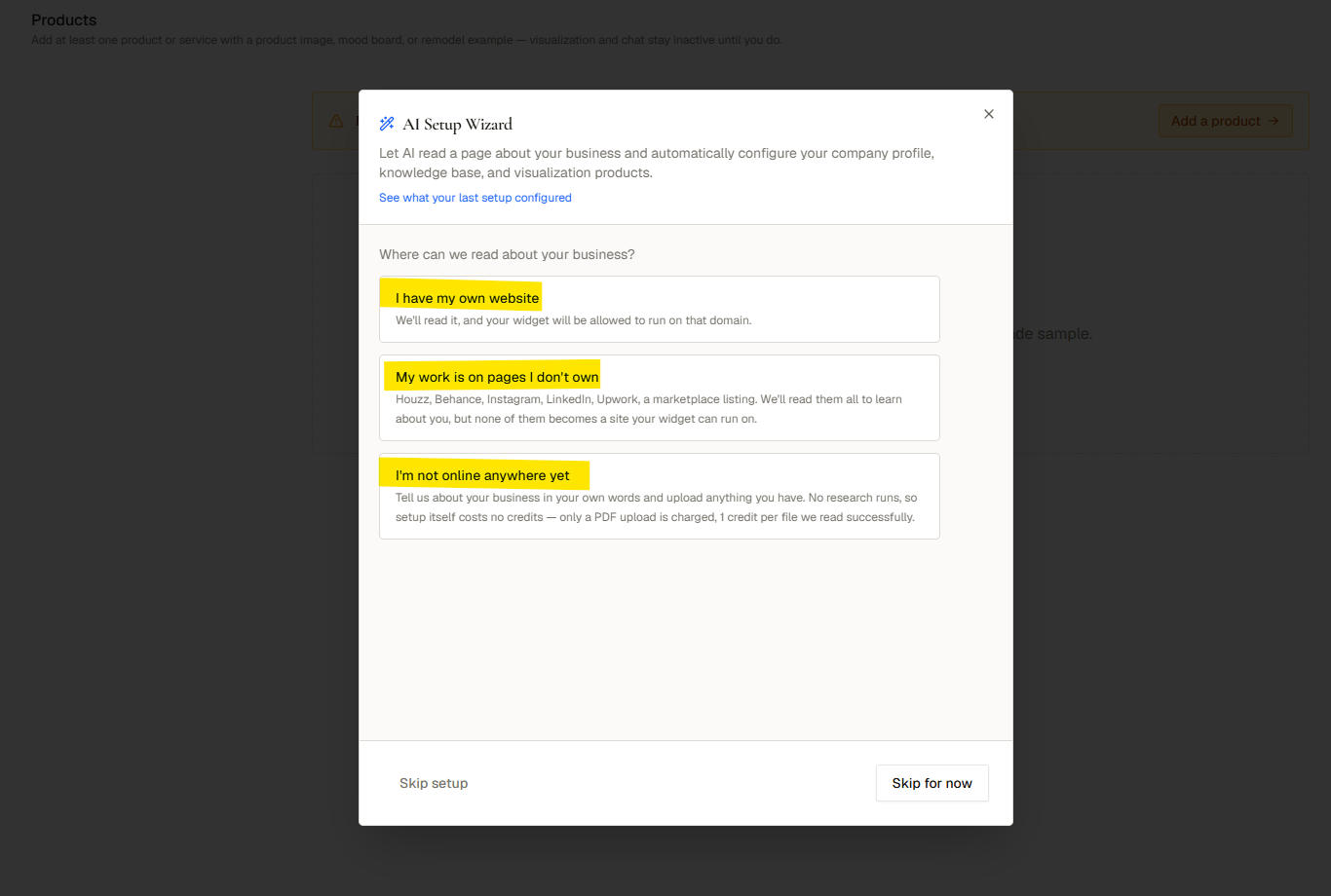
The wizard's first question is not "do you have a website" but **"is this page yours?"**, because only a site you own can be authorized to run your widget.
| Choice | What it means | Cost |
| ----------------------------------- | ---------------------------------------------------------------------------------------------------------------------------------------------------------- | ---------- |
| **I have my own website** | We read it, **and** your widget is allowed to run on that domain. | 10 credits |
| **My work is on pages I don't own** | Houzz, Behance, Instagram, LinkedIn, Upwork, a marketplace listing. We read them to learn about you, but **none** becomes a domain your widget can run on. | 10 credits |
| **I'm not online anywhere yet** | Nothing to research. You describe the business yourself and upload anything you have. | **Free** |
If you pick the second route, reading those pages teaches the AI about your business but adds no authorized domain. That is what the [hosted page](/hosted-page/overview) is for: publish it and share the link, no snippet required.
 ## Give it up to 10 links
On the *my own website* route you get three fields:
## Give it up to 10 links
On the *my own website* route you get three fields:
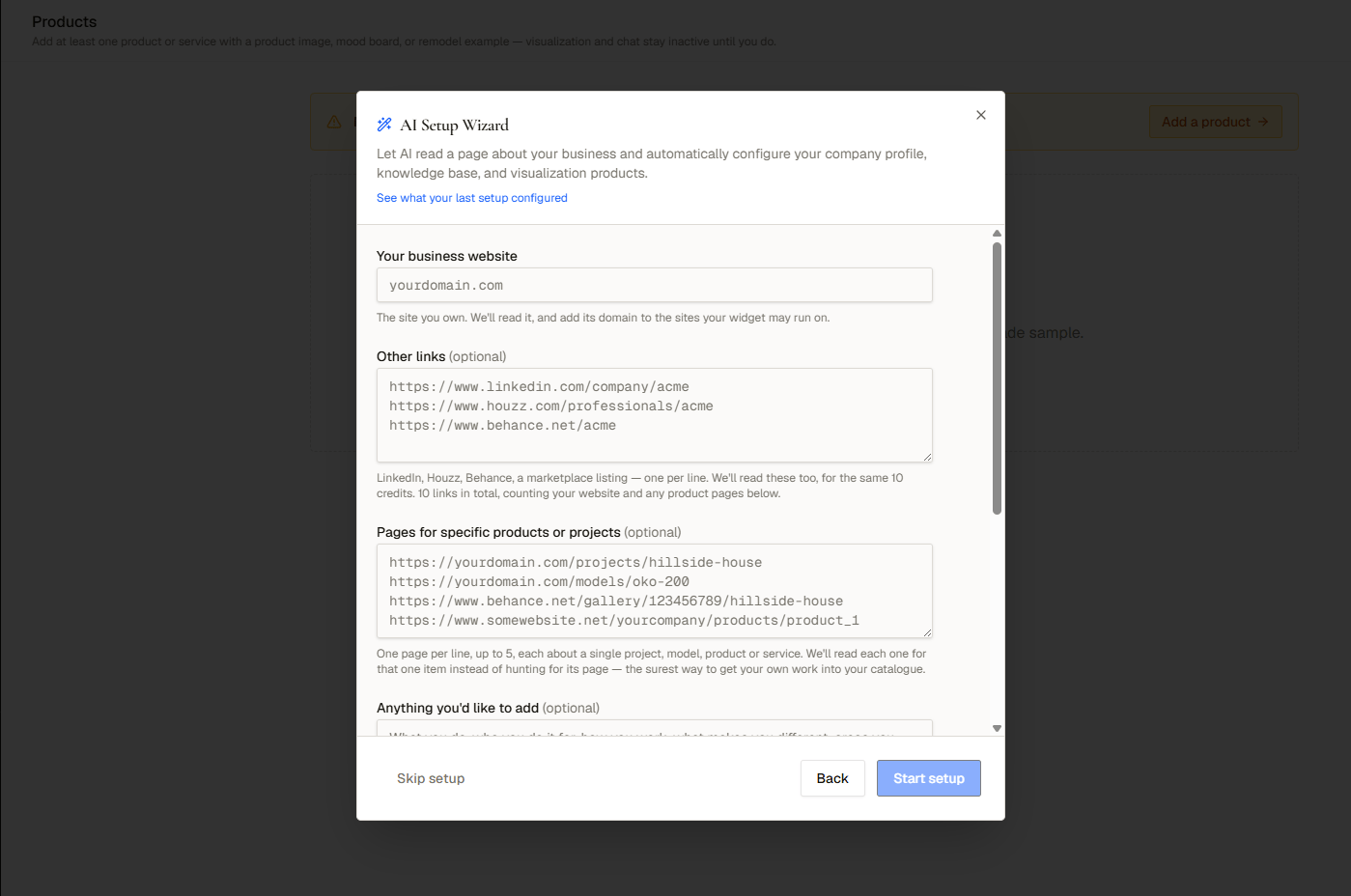 * **Your business website**: one line, the site you own, and required on this route. This is the only entry that adds a domain to the sites your widget may run on. A bare `acme.com` becomes `https://acme.com`.
* **Other links** *(optional)*: LinkedIn, Houzz, Behance, a marketplace listing, one per line. Read exactly like your website, but they grant nothing.
* **Pages for specific products or projects** *(optional, up to 5)*: one page per line, each about a single project, model, product, or service. These land in your catalog with the real page attached.
On the *pages I don't own* route you get the last two fields; nothing there grants anything either.
Ten links cost the same 10 credits as one. Paste them however you like: newlines, commas, or spaces all work. Duplicates count once. Bad links are named individually and the **Start setup** button stays disabled until you fix them.
Only the website field forgives a bare hostname. Links must be ordinary `http`/`https` addresses; anything with a username, password, or unusual port is refused. Pages behind a login, paywall, or CAPTCHA cannot be read.
## Add what the pages don't say
Both boxes below the links appear on every route. On the *not online anywhere* route they are where the whole profile comes from.
* **Anything you'd like to add**: type what you would tell a new client (what you do, who for, how you work, areas you cover, typical lead times). This is saved as *your own notes* and **re-running setup never overwrites it**.
* **Documents**: upload a brochure, capability statement, or price list. PDF, `.txt`, or `.md`, up to 10 MB each, and up to 5 documents. A PDF costs **1 credit** to convert; text and Markdown are free.
* **Your business website**: one line, the site you own, and required on this route. This is the only entry that adds a domain to the sites your widget may run on. A bare `acme.com` becomes `https://acme.com`.
* **Other links** *(optional)*: LinkedIn, Houzz, Behance, a marketplace listing, one per line. Read exactly like your website, but they grant nothing.
* **Pages for specific products or projects** *(optional, up to 5)*: one page per line, each about a single project, model, product, or service. These land in your catalog with the real page attached.
On the *pages I don't own* route you get the last two fields; nothing there grants anything either.
Ten links cost the same 10 credits as one. Paste them however you like: newlines, commas, or spaces all work. Duplicates count once. Bad links are named individually and the **Start setup** button stays disabled until you fix them.
Only the website field forgives a bare hostname. Links must be ordinary `http`/`https` addresses; anything with a username, password, or unusual port is refused. Pages behind a login, paywall, or CAPTCHA cannot be read.
## Add what the pages don't say
Both boxes below the links appear on every route. On the *not online anywhere* route they are where the whole profile comes from.
* **Anything you'd like to add**: type what you would tell a new client (what you do, who for, how you work, areas you cover, typical lead times). This is saved as *your own notes* and **re-running setup never overwrites it**.
* **Documents**: upload a brochure, capability statement, or price list. PDF, `.txt`, or `.md`, up to 10 MB each, and up to 5 documents. A PDF costs **1 credit** to convert; text and Markdown are free.
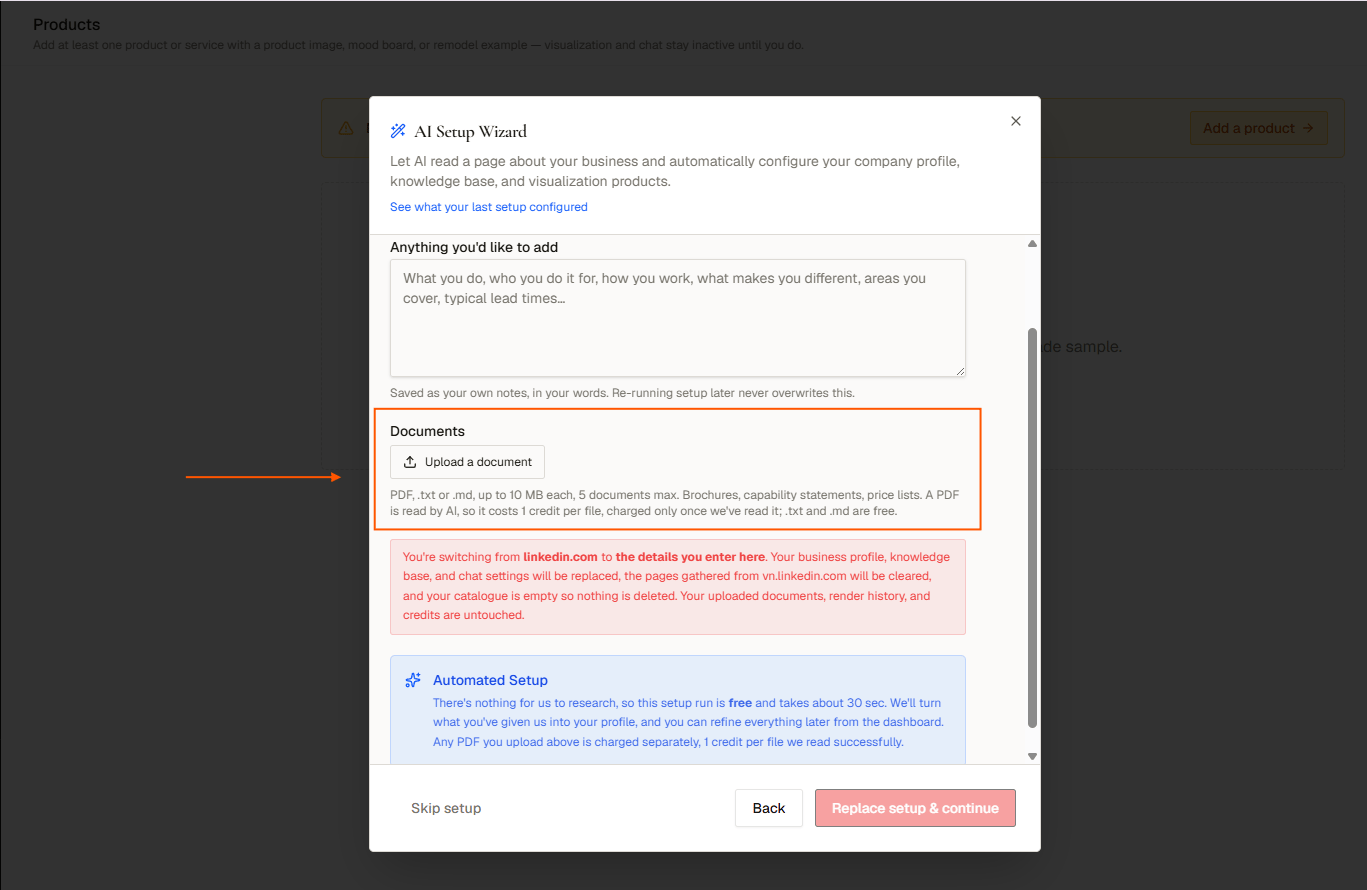 PDF credits are charged at upload, not at Start. The credit comes off the moment the file converts, so it is spent even if you close the wizard without running setup. Your documents stay on the account either way and appear on the Chat page's Knowledge section.
On the *not online anywhere* route you must give a business name plus either notes or a document; there has to be something to build from.
## What the wizard does
Choose one of the three routes, then fill in the links (or the business name) and anything you want to add.
On the research routes this costs **10 credits** and takes roughly 2 to 3 minutes. The *not online anywhere* route is free and takes about 30 seconds.
The wizard shows Queued, Researching your website, Gathering product images, Filling out your company profile, and Finishing up, with a running timer.
PDF credits are charged at upload, not at Start. The credit comes off the moment the file converts, so it is spent even if you close the wizard without running setup. Your documents stay on the account either way and appear on the Chat page's Knowledge section.
On the *not online anywhere* route you must give a business name plus either notes or a document; there has to be something to build from.
## What the wizard does
Choose one of the three routes, then fill in the links (or the business name) and anything you want to add.
On the research routes this costs **10 credits** and takes roughly 2 to 3 minutes. The *not online anywhere* route is free and takes about 30 seconds.
The wizard shows Queued, Researching your website, Gathering product images, Filling out your company profile, and Finishing up, with a running timer.
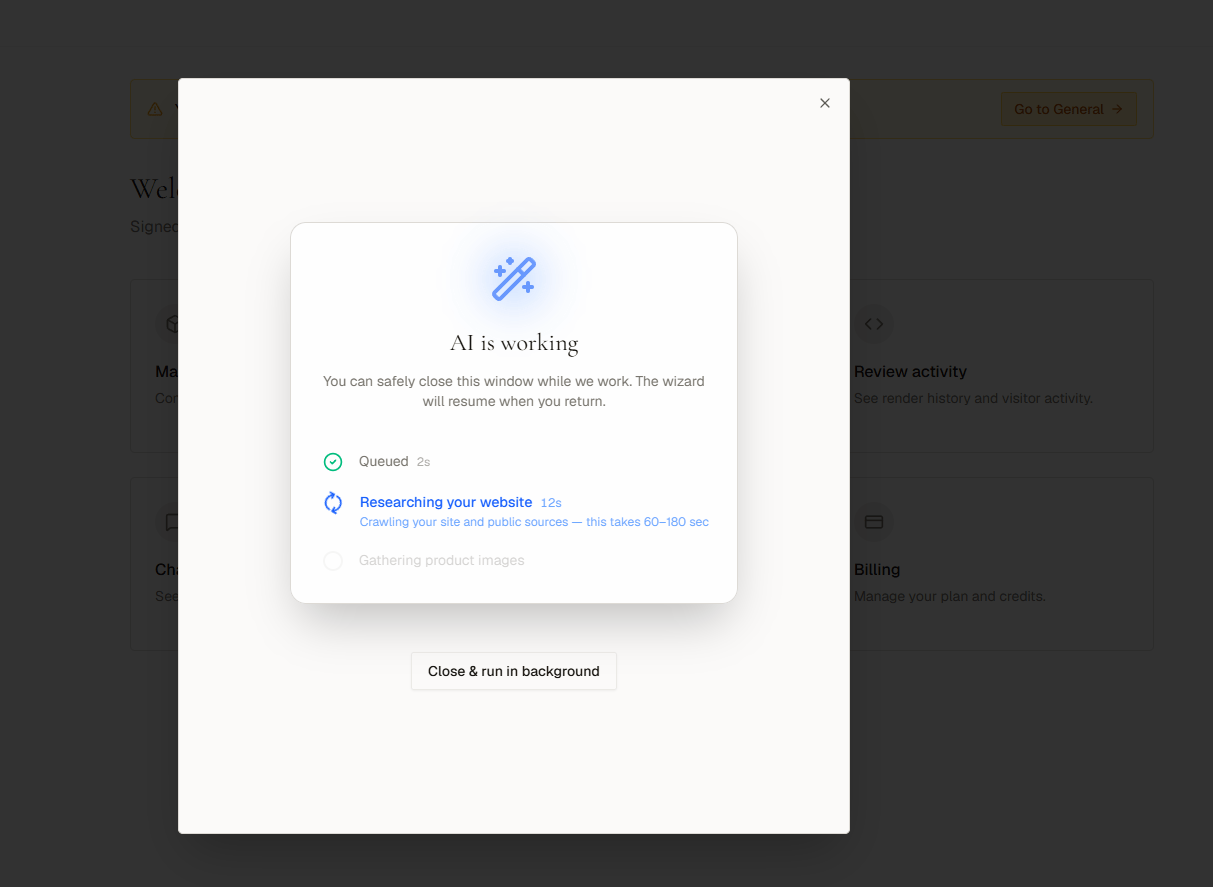 The last step reads Saving configuration, then shows the **Setup Complete** review. The button out of it is **Go to General Setup**.
You do not have to watch it. Click **Close & run in background** and the run finishes on its own. Come back to the dashboard later and the result is waiting for you.
A failed charged run is refunded automatically and the wizard offers a retry. A thin result (pages read but very little came back) is not a failure and is not refunded, because the research was done. The review screen says so plainly and points you at the Chat page to paste or upload the rest.
Click **Skip setup** (or **Skip for now**) at any time to go to your dashboard and set up manually.
## What setup configured
The completion screen shows everything in one place. Nothing on it is editable; every row links to the screen that owns the setting.
| Block | What it tells you |
| ------------------------------- | -------------------------------------------------------------------------------------------------------------- |
| **Where visitors will find it** | Your authorized domain, your hosted page link, or that your widget has nowhere to appear yet and how to fix it |
| **What we configured** | Your business profile, knowledge, products, and chat greeting, each with a link to General, Chat, or Products |
| **Products we found** | Every product drafted, with its image or a **Needs a photo** flag, and a count of how many still need one |
| **What your assistant learned** | The sections written into your knowledge base and where each came from |
| **Sources** | Every link you gave, marked **Read** or **No data** |
The summary is not one-shot. Open the wizard from the sidebar and click **See what your last setup configured** on the welcome screen to see it again. Looking at it changes nothing and doesn't stop you starting a new run.
## Re-running the wizard
You can run the wizard again any time from **Setup wizard** in the sidebar. A research run costs **10 credits**; the *not online anywhere* route is still free. What happens depends on whether you point it at the same source as last time.
| You enter | What happens |
| ------------------------------------- | ----------------------------------------------------------------------------------------------------------------------------------------------------------------------------------- |
| **The same source** (a **re-scan**) | Business profile, knowledge base, and chat settings are rewritten from the new run. **Your products are kept**, anything already in your catalog is skipped rather than duplicated. |
| **A different source** (a **switch**) | Business profile, knowledge base, and chat settings are replaced. Pages gathered from the old source are cleared. **Products from the previous source are deleted.** |
Switching sources is destructive. The knowledge gathered from the old source is replaced and its products are deleted. Moving to the typed-in route counts as a switch too. Your uploaded documents, the notes you typed into the wizard yourself, your render history, and your credit balance are never touched by either mode.
The wizard tells you which mode it is about to run, names the old and new source, and says how many products would be deleted. Read that message before confirming. The confirm button reads:
* **Start setup** (first run)
* **Re-run setup** (same source)
* **Replace setup & continue** (different source)
## Related pages
Publish a shareable page with no snippet required.
Manage the catalog the wizard drafted.
Understand what the wizard costs and what is refunded.
The last step reads Saving configuration, then shows the **Setup Complete** review. The button out of it is **Go to General Setup**.
You do not have to watch it. Click **Close & run in background** and the run finishes on its own. Come back to the dashboard later and the result is waiting for you.
A failed charged run is refunded automatically and the wizard offers a retry. A thin result (pages read but very little came back) is not a failure and is not refunded, because the research was done. The review screen says so plainly and points you at the Chat page to paste or upload the rest.
Click **Skip setup** (or **Skip for now**) at any time to go to your dashboard and set up manually.
## What setup configured
The completion screen shows everything in one place. Nothing on it is editable; every row links to the screen that owns the setting.
| Block | What it tells you |
| ------------------------------- | -------------------------------------------------------------------------------------------------------------- |
| **Where visitors will find it** | Your authorized domain, your hosted page link, or that your widget has nowhere to appear yet and how to fix it |
| **What we configured** | Your business profile, knowledge, products, and chat greeting, each with a link to General, Chat, or Products |
| **Products we found** | Every product drafted, with its image or a **Needs a photo** flag, and a count of how many still need one |
| **What your assistant learned** | The sections written into your knowledge base and where each came from |
| **Sources** | Every link you gave, marked **Read** or **No data** |
The summary is not one-shot. Open the wizard from the sidebar and click **See what your last setup configured** on the welcome screen to see it again. Looking at it changes nothing and doesn't stop you starting a new run.
## Re-running the wizard
You can run the wizard again any time from **Setup wizard** in the sidebar. A research run costs **10 credits**; the *not online anywhere* route is still free. What happens depends on whether you point it at the same source as last time.
| You enter | What happens |
| ------------------------------------- | ----------------------------------------------------------------------------------------------------------------------------------------------------------------------------------- |
| **The same source** (a **re-scan**) | Business profile, knowledge base, and chat settings are rewritten from the new run. **Your products are kept**, anything already in your catalog is skipped rather than duplicated. |
| **A different source** (a **switch**) | Business profile, knowledge base, and chat settings are replaced. Pages gathered from the old source are cleared. **Products from the previous source are deleted.** |
Switching sources is destructive. The knowledge gathered from the old source is replaced and its products are deleted. Moving to the typed-in route counts as a switch too. Your uploaded documents, the notes you typed into the wizard yourself, your render history, and your credit balance are never touched by either mode.
The wizard tells you which mode it is about to run, names the old and new source, and says how many products would be deleted. Read that message before confirming. The confirm button reads:
* **Start setup** (first run)
* **Re-run setup** (same source)
* **Replace setup & continue** (different source)
## Related pages
Publish a shareable page with no snippet required.
Manage the catalog the wizard drafted.
Understand what the wizard costs and what is refunded.