Your AI chat can only answer questions about what it has been taught. The Chat page gives you three ways to add that information: write text directly, scan public web pages, or upload documents.
Text is the most reliable knowledge source and the best starting point. Build your text base first, then supplement with website scans and documents.

Text: write your knowledge manually

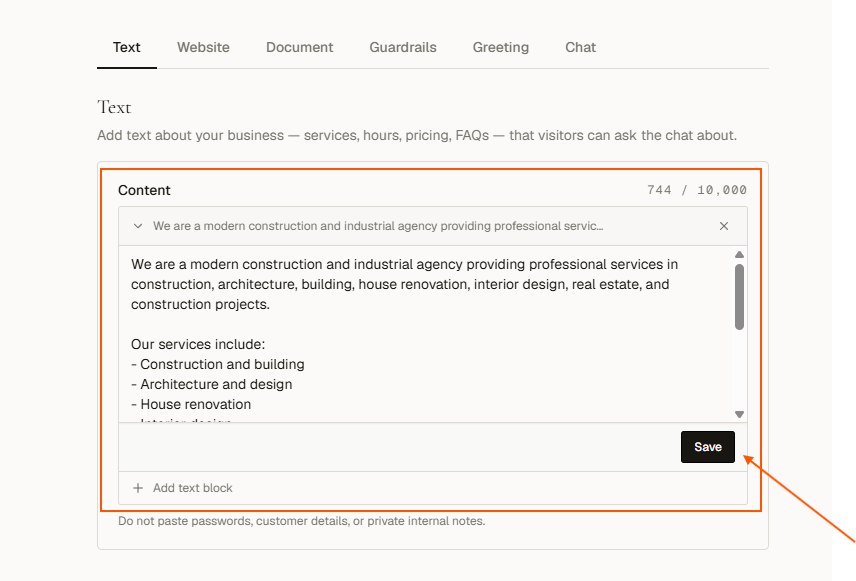
Write out the facts you want the AI to know: services, pricing, coverage area, process, FAQs.
1

Open the Text tab

Go to Dashboard → Chat and click the Text tab.
2

Add your knowledge

Type or paste your business knowledge into the text area.Screenshot 2026 08 29 153745
3

Save

Click Save knowledge.
Use plain language. Cover your most common visitor questions. Do not include passwords, customer data, or private notes.
An empty Text box does not mean an empty assistant. If setup read your pages, that content lives on the Website tab. Keep this box for what only you know: prices you do not publish, how you actually work, the answers you give on the phone. A re-scan refreshes the website content without touching a word of it.

Website: scan your existing pages

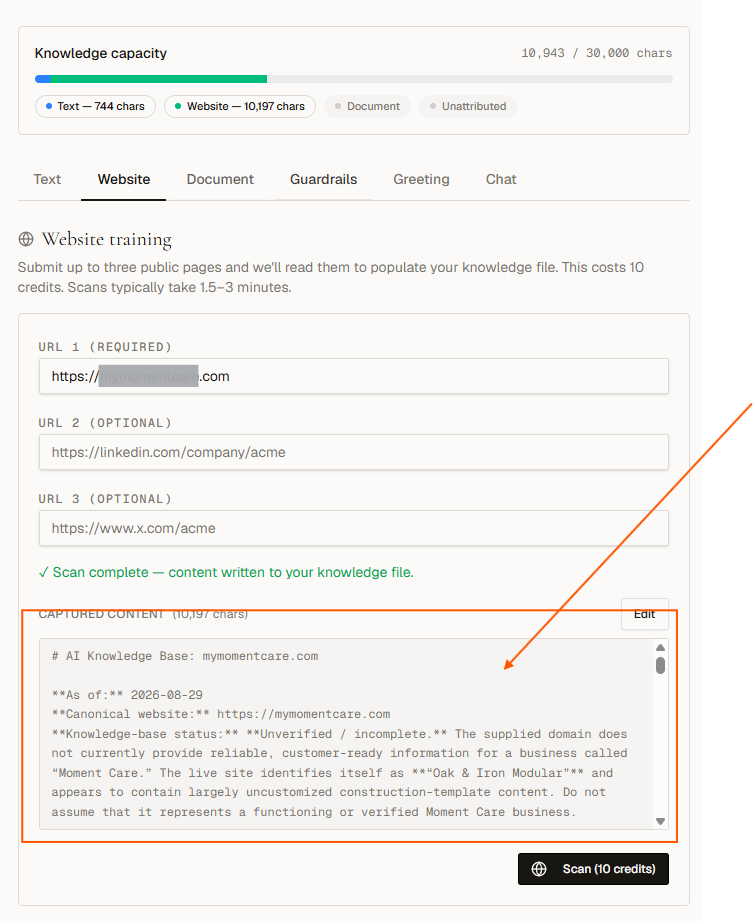
Pull content in from pages that are already published. Costs 10 credits per scan, however many pages you give it.
1

Open the Website tab

Click the Website tab on the Chat page.
2

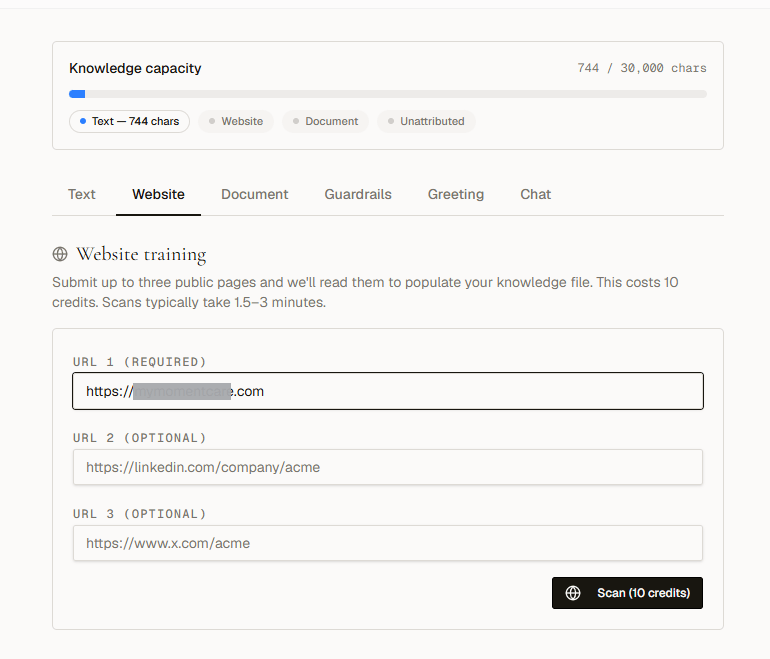
Enter URLs

Paste up to 10 public page URLs, one per line: your About page, services, FAQ, a project page. They do not have to be your own site. A Houzz, Behance, LinkedIn, or marketplace profile works just as well.Screenshot 2026 08 29 154105
3

Scan

Click Scan (10 credits). Scans usually take 1.5 to 3 minutes. The tab shows the stage and elapsed time, and you can leave the page: the scan keeps running.Screenshot 2026 08 29 154149Screenshot 2026 08 29 154238
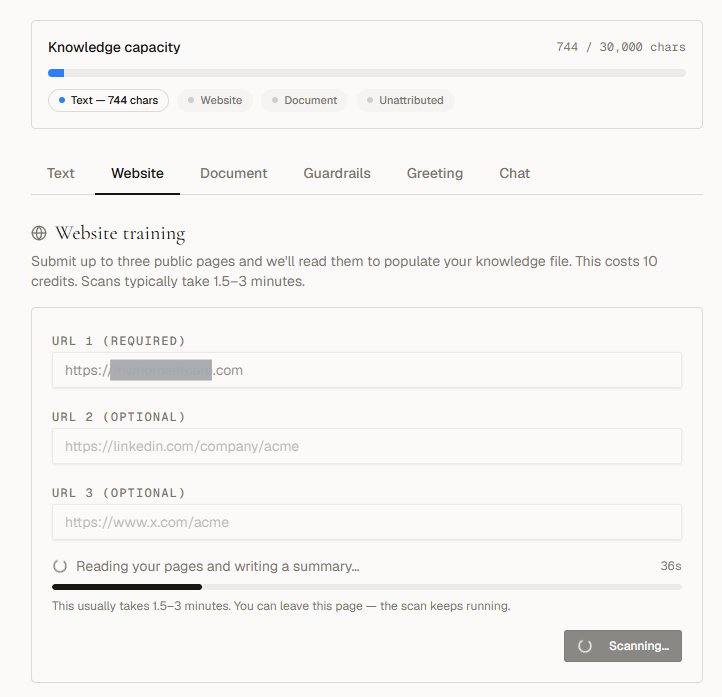
A bad or excess line is caught before you are charged. The offending line is named and the Scan button stays disabled until you fix it.
Only public pages work. Pages behind a login, CAPTCHA, or paywall will fail or return empty content. The Scan button is disabled when knowledge capacity is at 90% or above.
Re-scanning replaces the website content you already have. You are asked to confirm. Your Text tab and uploaded documents are untouched.

Document: upload files

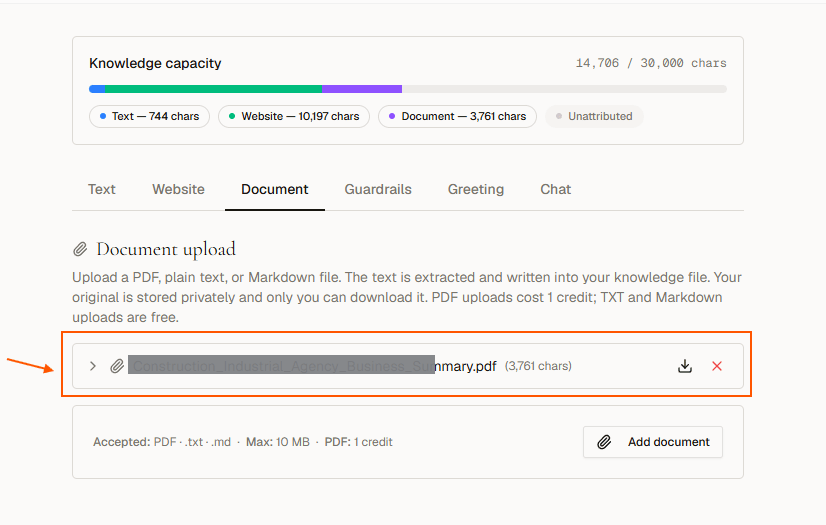
Upload PDF, plain text (.txt), or Markdown (.md) files, up to 10 MB each and 5 documents total. PDFs cost 1 credit (charged the moment the file converts); text and markdown files are free.
1

Open the Document tab

Click the Document tab on the Chat page.
2

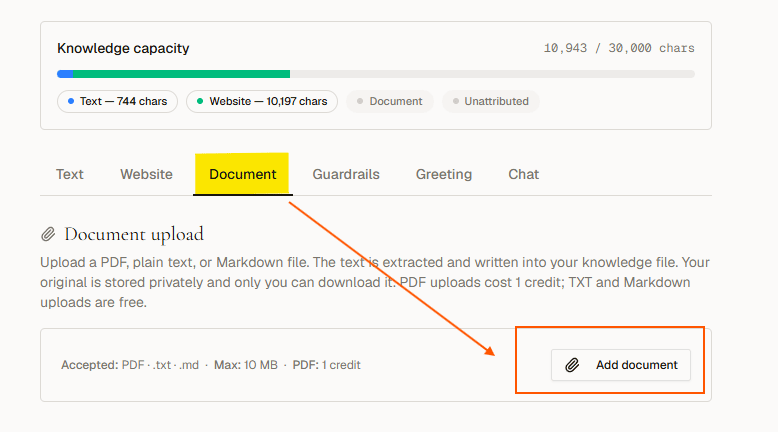
Upload a file

Click Add document and select your file. The text is extracted and added to your knowledge automatically.Screenshot 2026 08 29 154812Screenshot 2026 08 29 154936
3

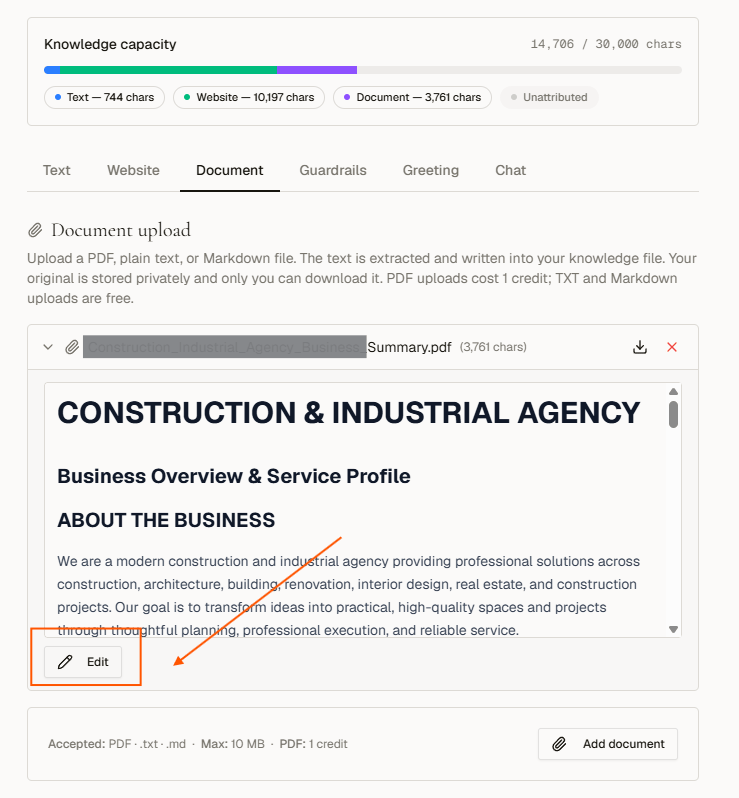
Review or edit

Each uploaded file appears as an expandable row. Click a row to read or inline-edit the extracted content. Changes save immediately.Screenshot 2026 08 29 155138
What is worth uploading: a capability statement, brochure, or line card; price lists, spec sheets, or materials guides; service areas, lead times, warranty terms, your process. What is not: scanned images of pages and photography-only portfolios. The AI reads text, so a PDF with no text layer adds nothing.
An empty Text box does not mean an empty assistant. If setup read your pages, that content lives on the Website tab. Keep this box for what only you know: prices you don’t publish, how you actually work, the answers you give on the phone. A re-scan refreshes the website content without touching a word of it.
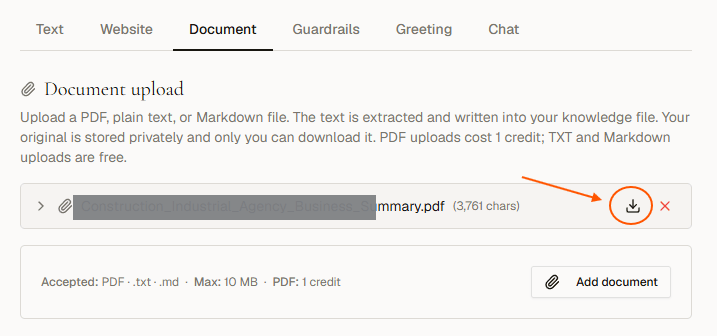
You can download or delete any file at any time without losing the extracted content of others. Screenshot 2026 08 29 155305
Editing the extracted text updates what the AI knows. It does not modify the original PDF file. The Add document button is disabled when knowledge capacity is at 90% or above, or once you have 5 documents.

Next steps