

Where to find leads
Open your AIBCO dashboard and go to Logs in the left sidebar, then click the Leads tab:aibco.ai/dashboard/logs → Leads. This table is your central record of every visitor who submitted their information through the widget.
How visitors become leads
Visitors turn into leads through two paths in the widget. Each path captures slightly different details.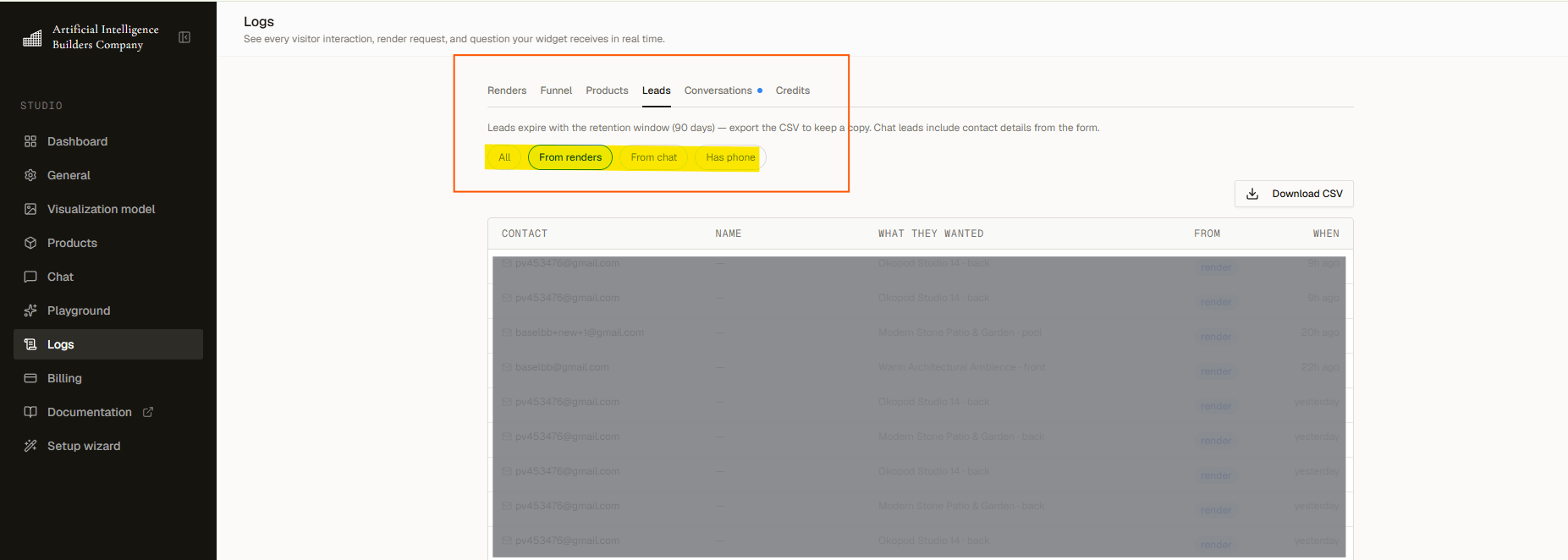
1
From a render
After a visitor generates a visualization, they are asked for their email address: either to view the results (“Enter your email to view your renders”) or to have them emailed (“Want these renders emailed to you?”). Submitting the email turns them into a lead and sends their renders to their inbox automatically.
2
From chat
During a conversation, the AI assistant can offer an inline contact form. Submitting it captures the visitor’s name, email, phone number, and message.
What the Leads table shows
The Leads table summarizes each contact. Rows are not clickable and cannot be deleted individually.
Use the filter pills above the table to narrow results: All, From renders, From chat, and Has phone.
Export leads
Click Download CSV to export the full table. The CSV includes: source, email, phone, name, message, product name, placement, render count, when, and conversation ID. Import this file into your CRM or any spreadsheet to manage follow-ups.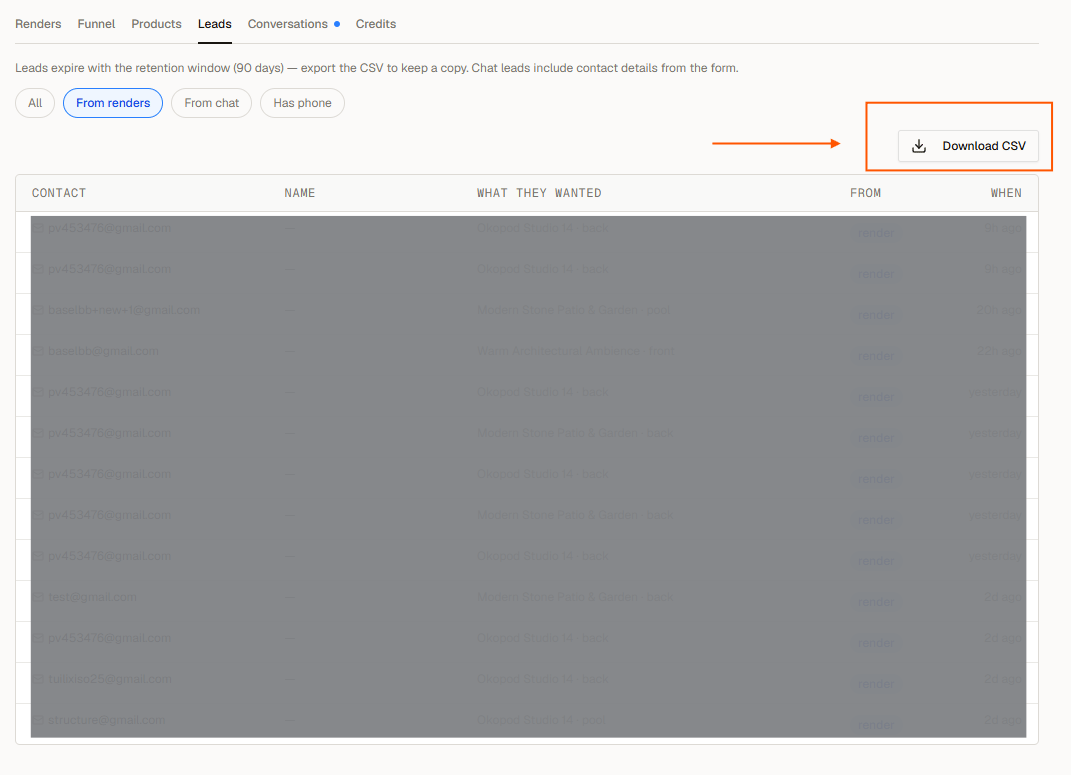
Leads are never restricted by plan. On every plan, including Free, your leads and their contact details stay visible and exportable. This includes after your free analytics period ends. Plan gating never hides your leads.
The full story behind a lead
Lead rows show a summary only. To see the full transcript for chat leads, open the Conversations tab in Logs. It contains every message, the visitor’s contact details, and any renders they generated. Transcripts age out on the same retention window. Note that the Conversations tab is one of the tabs that locks on the Free plan after the free analytics period ends.Related topics
Analytics overview
Understand visitor engagement with renders, funnels, and product performance.
Credits
Learn how credits are spent on renders, scans, and chat messages.